
User Management
Survey Monkey Apply User Management
Due to some recent improvements to the security and privacy of the Survey Monkey Apply (SMApply) platform, user management actions are reserved for administrators of applicant organizations. We will still be able to troubleshoot and assist you through the application process. If you encounter any difficulties with the platform, please don’t hesitate to reach out.
This guide contains two sections:
Adding a New User to your SMApply Organization: This is for members of your organization who do not yet have an account on SMApply, or who have an account but have not been added to your organization.
Provide a User with Access to an Application:This is for users who already have an SMApply account with your organization, but who need access to a specific application. If users experience a 404 error when clicking into an application, they likely need to be provided access.
Adding a New User to your SMApply Organization
Follow these instructions if a new user needs to be added to your SMApply organization to collaborate on and edit any applications or reporting submissions.
To add users, you must be logged into an account with organizational administrator permissions. By default, the Primary Administrator is the user who first created the SMApply organizational account. Additional users may also be designated as administrators. If you don’t know who your organizational administrator is, or if that user no longer has access to their account, please contact prequalification@acquisitionfund.ca.
As an Organizational Administrator:
- Click “Manage organization” in the top-right corner, and navigate to the “Members” tab.

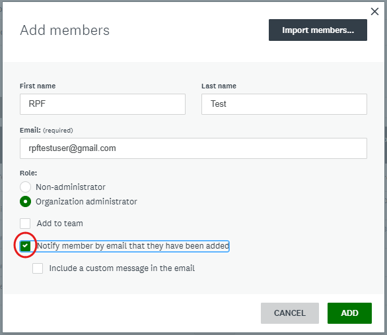
- Click the blue “Add Member” button. In the dialog, fill out the user’s information. Select the users role: Organization Administrators can add new users, create applications, and will be added to all future reporting applications.
- Ensure the “notify member by email that they have been added” box is checked; click the “add” button.
- Follow the steps in the section below for providing a user with access to applications
As the New User:
- You will likely have multiple emails from SMApply in your inbox; one notifying you that you’ve been added to the organization, and one for each application you were added to. Click the first email, with subject beginning “Invitation to join…” Click the green Join Now button.
- Enter your personal information and set a password. Click “Create Account”
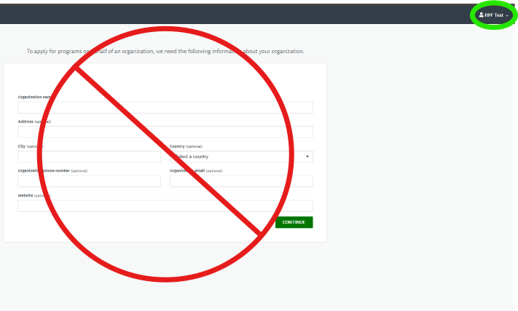
- If this screen pictured below pops up, do not fill this out. Instead, log out using the menu in the top right.
- Return to your email, and open the email with subject “Request to collaborate on <application name>”. Click the green “Join now” button, and log in with your newly-set credentials.
- In the future, you can access your organization’s applications by logging in to https://chaf.smapply.ca/.
Provide a User with Access to an Application
By default, all Organization Administrators will be granted access to new applications. If you want a user to be able to access all future applications, change their role to an administrative one. New administrators will not automatically be added to previous applications, and these new administrators will need to add themselves to past applications, as necessary.
User the following instructions to add new users to any applications, or to provide existing users with access to new applications.
Please Note: If you are an administrator, you may get a 404 error when clicking on an application. In this case, you may need to add yourself to the application. The following steps can be used to add yourself or another user.
- Click “My Applications” in the menu bar.

- For each application that the user needs access to, navigate into the application by clicking “start”, “continue”, or “view”.
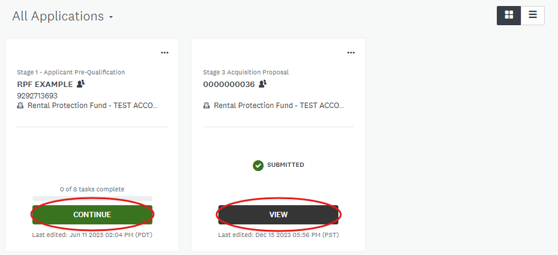
- Click the green “Add Member or Team” button on the left side; select the user(s) that need to be added and click the green “Add” button.
- Repeat for all applications that the user needs to be able to access.
- Non-Administrator users will not be automatically added to future applications. If a non-Administrator user needs to access an additional application in the future, follow the same process to grant access.